
A cTrader Trading Journal That Imports Your Closed Trades
Connect a cTrader account with Spotware's own login and your closed trades sync into the journal in the background, read-only, with no VPS, EA or API keys. Updated 18 October 2026
How the cTrader Connection Works
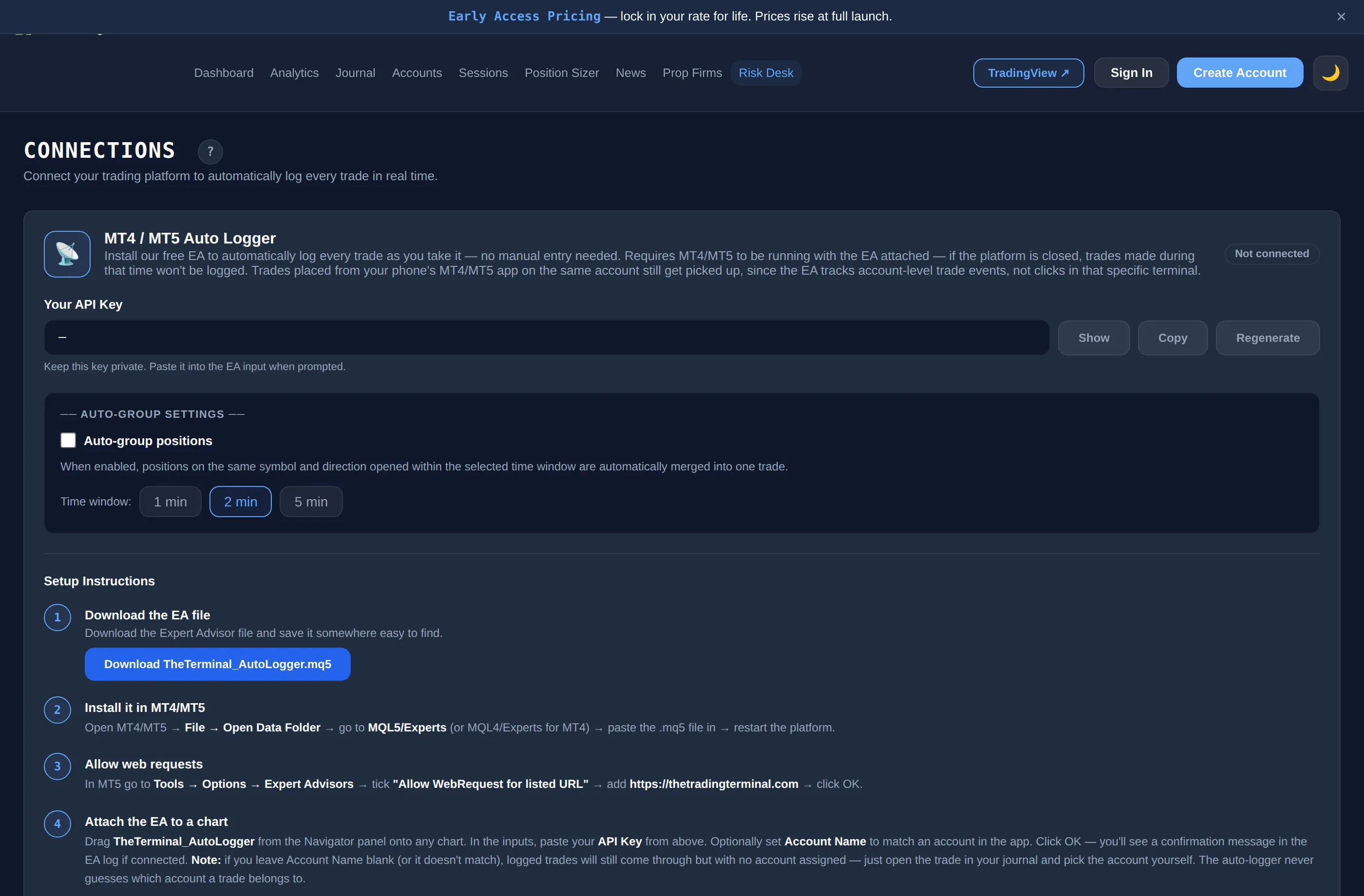
The Trading Terminal connects to cTrader through Spotware's own login, the same OAuth sign-in every cTrader broker uses. You open Connections, choose Connect cTrader, sign in on Spotware's page and approve access. The Trading Terminal does not see your broker password, and there are no API keys to copy.
- Map each account. You will see every cTrader account tied to your login. Pick which Trading Terminal account each one feeds, or leave it on auto-create and one is made for you.
- Sync. Trades are pulled automatically in the background every few minutes, and Sync now pulls newly closed trades on demand.
- Live and demo. The sync checks both live and demo cTrader servers, so demo accounts can feed a journal too.
- No laptop, VPS or EA. Nothing has to be running on your side once the account is connected.
What Gets Imported
The connection reads closed trade history only. A position is imported once it has a filled closing deal, so open positions are skipped until they close. Each closed position becomes one trade in the journal.
| Field | How it is filled |
|---|---|
| Symbol and direction | From the opening deals; direction is the side of the opening deal |
| Volume | Total filled opening volume |
| Entry and exit price | Volume-weighted average of the opening and closing deals |
| Open and close time | First opening deal and last closing deal, stored in your own timezone |
| Gross P&L, commission and swap | From the closing deals, in the account currency; net P&L is gross plus commission plus swap |
| Outcome | Win, Loss or Break Even from the net P&L |
| Stop loss and take profit | Added when cTrader returns them for the order; may be blank |
| Label and comment | Added when set on the cTrader order |
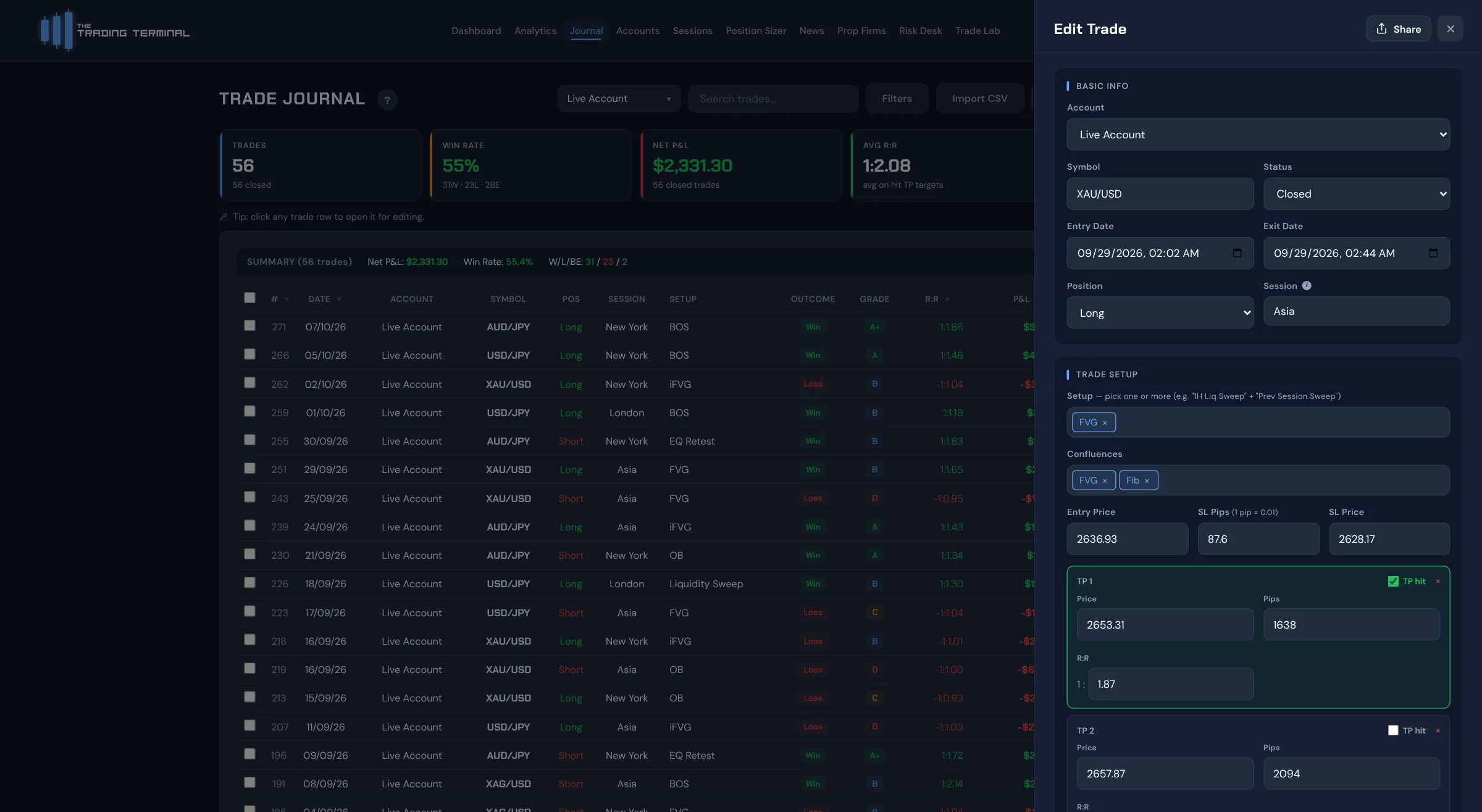
Everything else, such as setup, confluences, mistakes, emotion, grade, notes and screenshots, you add in the journal. Synced trades never overwrite your notes, grade or tags.
Merging With Trades You Logged by Hand
If you journaled a trade by hand before connecting, auto-merge can match the synced trade to it (same symbol, direction and entry time within a window you choose: 1, 5 or 10 minutes) and merge them into one entry rather than creating a duplicate. Re-import deletes previously imported trades from that account and pulls the full history again, and Disconnect stops future syncing but keeps the trades already in your journal.
What It Does Not Do
- It does not place, modify or close trades. The Trading Terminal reads closed trade history only.
- It does not move funds or change account settings.
- It does not import open positions until they close.
- It is for cTrader. For MetaTrader platforms see the MT5 trading journal and MT4 trading journal pages.
What You Can Analyse Once Trades Are In
Imported trades feed the same analytics as any other trade: trading analytics such as Trader DNA, the Edge Score and Mistake Cost Analysis, and Risk Desk for daily loss limit and drawdown tracking from your closed trades. The definitions are on how we calculate. The connection works for live and demo accounts, and for prop firm accounts held with a cTrader broker, where the prop firm trading journal covers the rules side.