
Trading Journal App: Use It on Your Phone With No Download
The Trading Terminal works as a trading journal app in your phone's browser: log trades, add screenshots and review your dashboard with nothing to download. There is no native iOS or Android app. Your browser can add it to your home screen, and the Free plan covers 1 account and 30 trades a month. Updated 18 October 2026.
By Harrison Weaver, founder of The Trading Terminal
What is a trading journal app?
A trading journal app is a journal you can open and write in from your phone, so you can record a trade while it is fresh instead of reconstructing it later. Some are native apps from an app store; others are web apps that run in the phone's browser and can be saved to the home screen. Both do the same job: capture the trade and the reason for it.
The Trading Terminal is the second kind. It is the same product on a desktop and a phone, with one account and one set of data. For the full software description see trading journal software, and for what the free plan includes see free trading journal.
Is there a native app for iPhone or Android?
No. We say it plainly because it changes what you can expect:
- No app store download. You open the website in your browser and sign in.
- One account everywhere. Trades logged on your phone appear on your computer, because they are stored in your account.
- Nothing to update. The site you open is always the current version.
- No offline mode. The site needs a connection. It has no service worker and does not store your journal on the device.
The trade-off is real: a native app can work offline and send notifications. A web app trades those for working identically on every device with nothing to install.
How do you add the journal to your phone's home screen?
The site publishes a web app manifest. It names the app The Trading Terminal (short name Trading Terminal), sets a standalone display so it opens without browser bars, points the start page at your dashboard and supplies 192 and 512 pixel icons. That is what lets a supporting browser offer to add it to your home screen or install it.
- Open thetradingterminal.com in your phone's browser and sign in.
- Open the browser's share or menu button.
- Choose Add to Home Screen, or Install app if your browser offers it.
- Open it from the new icon. It starts on your dashboard.
Menu names and options differ by browser and version, and some browsers do not offer install for every site. If yours does not, a normal bookmark works the same way.
What can you do in a journal app on your phone?
The same things as on a desktop browser, in a layout that adapts to a phone screen:
- Log a trade with the symbol, position, session, setups, confluences, risk, outcome, mistakes, emotion and discipline ratings and notes.
- Attach a screenshot to a trade (1 per trade on Free, up to 5 on Pro and Elite).
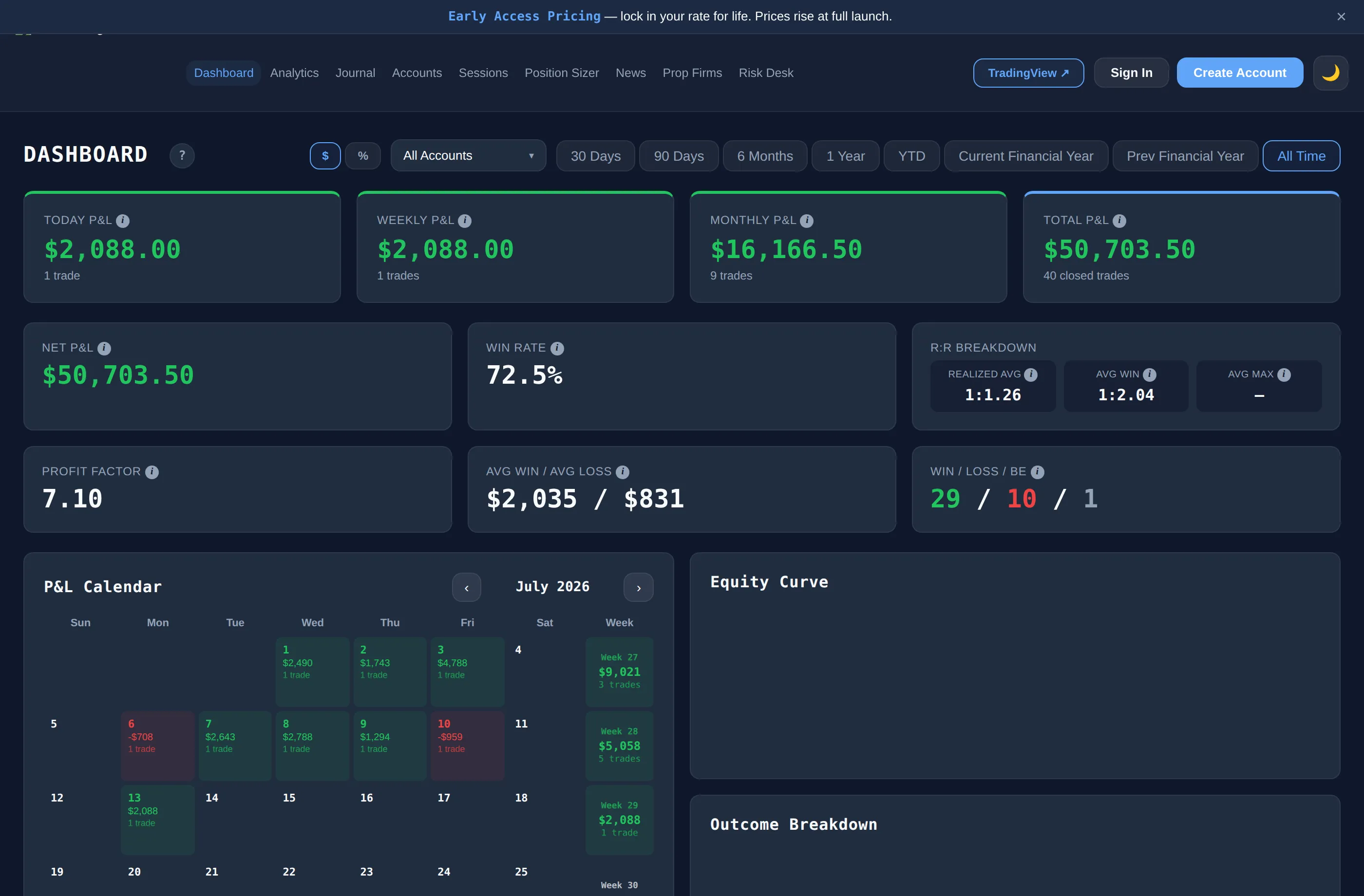
- Review the dashboard, the P&L calendar and the journal table, and search or filter your trades.
- Use the position sizer and the economic calendar, which are free tools on this site.
Native app or web app: how do they compare?
| Native app | Web app (The Trading Terminal) | |
|---|---|---|
| Install | App store download | Open the website; optional home screen shortcut |
| Updates | You update it | Always current |
| Offline | Often possible | Not available |
| Devices | Separate app per platform | Any modern browser, phone or desktop |
| Your data | Stored in the vendor's account or on the device | Stored in your account; export to CSV on every plan |
How do you make journaling on a phone a habit?
- Log it while it is fresh. A two-line entry right after the trade closes beats a perfect entry a day later.
- Use tags, not paragraphs. Pick the setup, tick the mistake and rate your emotion. Save the sentences for what surprised you.
- Screenshot at the time. Your charting platform's screenshot tool gives you an image to attach to the trade.
- Review on a bigger screen. Quick entries on the phone, the weekly review on a laptop. The what to write in a trading journal guide has the prompts.
If you trade through MT4, MT5 or cTrader on Elite, closed trades can be imported automatically and you only add the context. See the MT5 trading journal and cTrader trading journal pages.